Connecting to the Omega
Connecting to the Omega
Now that your Omega is setup, connected to a WiFi network, and updated, you'll want to connect to it to start building and inventing.
There are two ways to connect to the Omega's command prompt:
- Using the local network to connect through SSH
- Using a USB connection to connect to the serial terminal
Both methods will work fine and each has their advantages. We recommend using SSH since it allows you to wirelessly control any Omega that's connected to your WiFi network.
Connecting with SSH
SSH actually stands for Secure Shell, it's a network protocol that creates a secure channel for communication between two devices on the same network. It can be used to secure many different types of communication, but we will be using it to login to the Omega's command prompt for now.
The Good & Bad of SSH
When using SSH, the Omega and your computer communicate over the WiFi network to which they are both connected. This means that as long as the Omega is powered on and within range of your WiFi network, you can connect to it! No need to connect it directly to your computer. The disadvantage of SSH is that if the network connection gets interrupted, the connection will also be severed.
For most use-cases with the Omega, SSH will work really well. This should be your go-to method for accessing the Omega's command-line.
How to Connect
macOS
Step 1:
Open the Terminal app
Step 2:
Run the following command:
ssh root@omega-ABCD.local
Where ABCD is the unique id of your Omega.
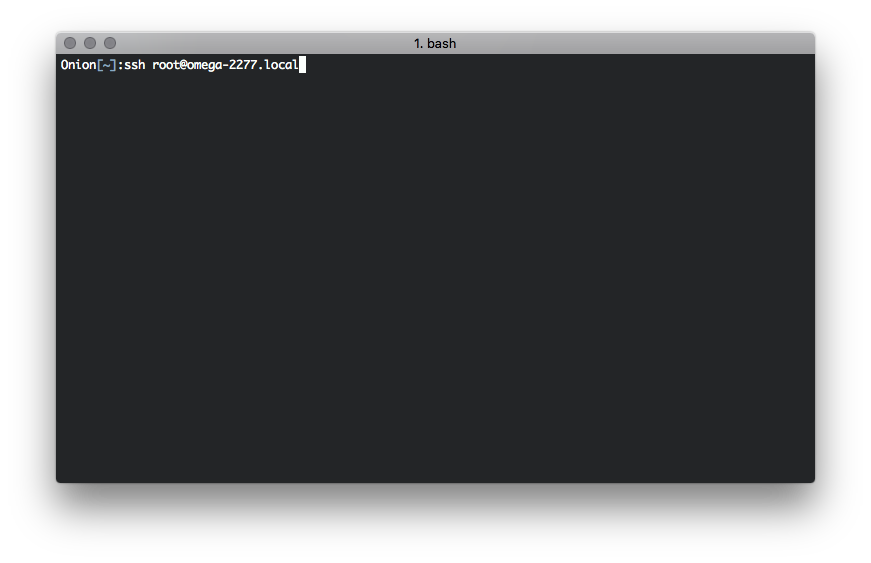
Step 3:
When prompted, enter the password
By default, the password is: onioneer
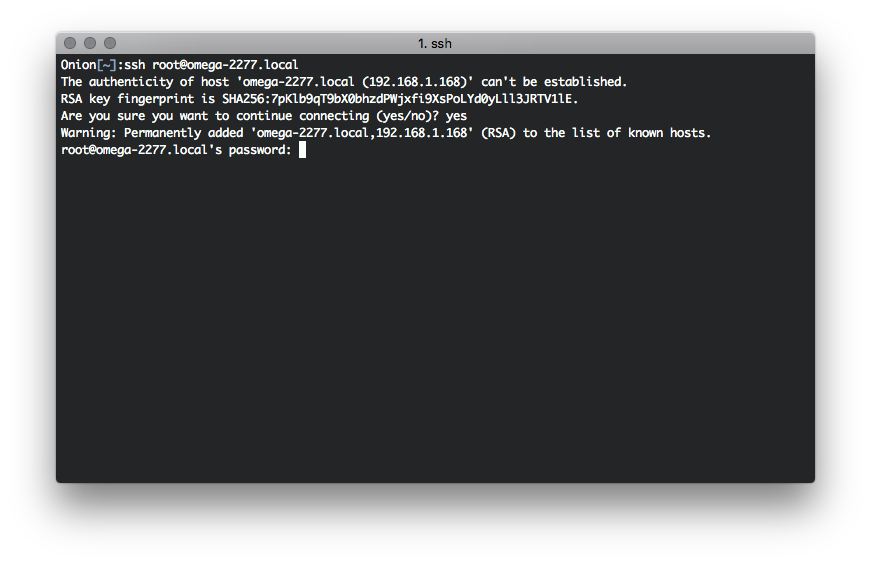
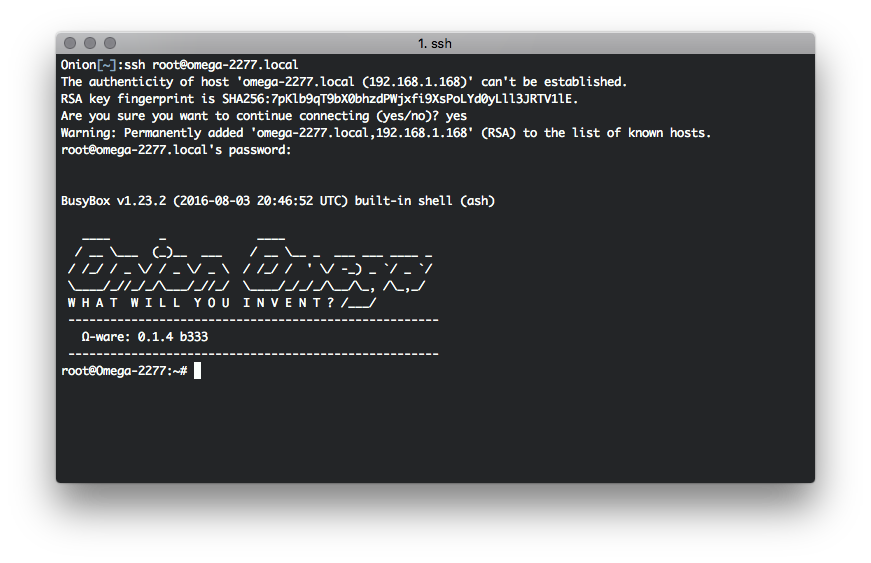
If you're prompted about adding the address to the list of known hosts, type yes. This is just your computer getting to know the Omega for the first time.
And you're in!
Linux
Step 1:
Open the Terminal app
Step 2:
Run the following command:
ssh root@omega-ABCD.local
Where ABCD is the unique id of your Omega.
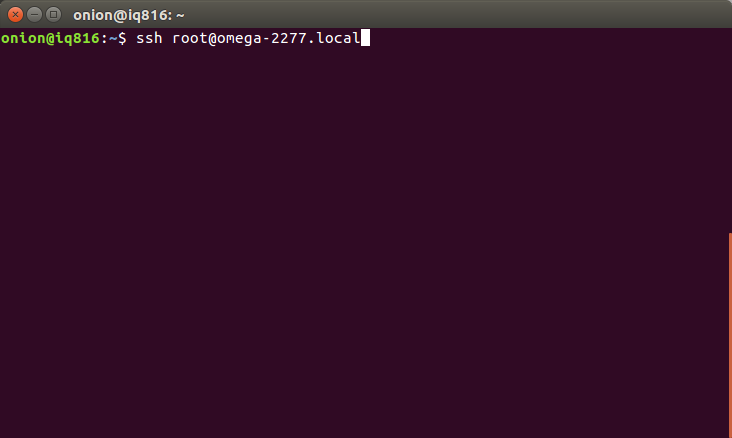
Step 3:
When prompted, enter the password
By default, the password is: onioneer
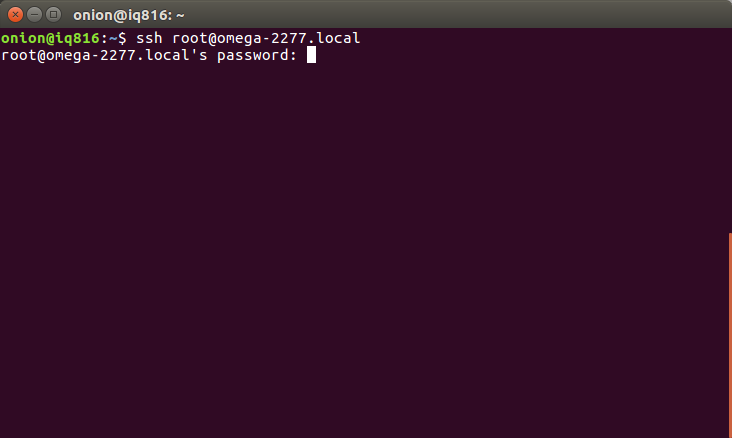
If you're prompted about adding the address to the list of known hosts, type yes. This is just your computer getting to know the Omega for the first time.
And you're in!
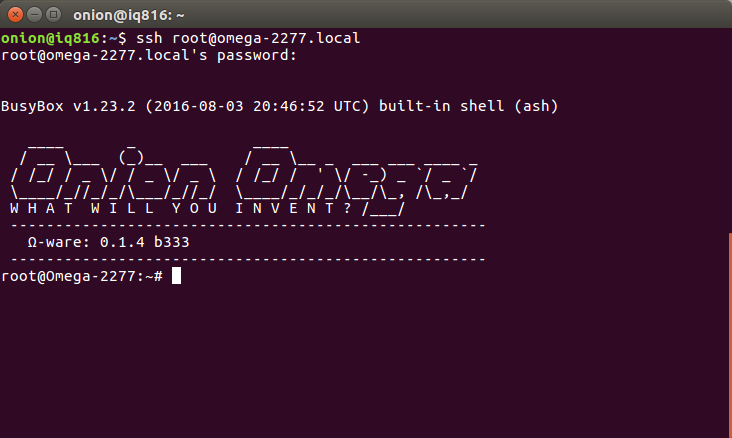
Windows
Step 1:
Download and install PuTTy
Step 2:
Configure an SSH connection to omega-ABCD.local on port 22:
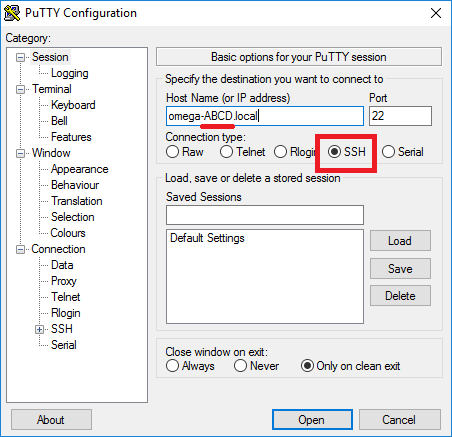
Where ABCD is the unique id of your Omega.
Step 3:
Click Open and enter the credentials when prompted.
By default, the credentials are:
Username: root
Password: onioneer
And you're connected!
Using SSH Key Pairs
Over the course of a few months, the number of times you type in the password to connect will add up to a whole bunch of time that could have been spent having fun. Don't worry, there's another way to authenticate your SSH connection: by using SSH Key Pairs, the Omega and your computer will do a secure handshake so you won't need to type in that pesky password all the time. Not only that, but using a key pair will make your Omega even more secure since passwords can be discovered but secure key pair authentication cannot be broken.
What exactly are Key Pairs
Good question! Authentication using a Key Pairs is based on having two randomly generated binary keys, where one is public and one is private. The private key is like a handwritten signature, used to prove your identity, so make sure to keep it secret and keep it safe. The public key is meant to be shared with other devices since it's only purpose is to verify your identity.
An SSH connection to your Omega that's secured by with a key pair will look something like this:
- Your computer will ask to login to the Omega, and the Omega will respond with 'Ok, but first prove your identity'
- Your computer will then generate a hash using your private key and send it to the Omega
- The Omega will use the stored public key to try to decode the identity hash, if the Public Key matches the Private Key, the decode will be successful, and the Omega will allow the connection to proceed.
How to Add your Public Key to the Omega
macOS
Step 1:
Let's first check to see if your computer already has a key pair. Open the Terminal App on your Mac and run:
ls ~/.ssh/id\_rsa.pub
If this file exists, skip ahead to Step 3.
Step 2:
No worries if you don't have a key yet, follow this quick guide to generate a key pair.
Step 3:
Copy the contents of the public key file to the clipboard:
cat ~/.ssh/id\_rsa.pub
Step 4:
Connect to your Omega's command prompt and create a new file:
/etc/dropbear/authorized\_keys
Now copy your public key into it.
And you're done!
From now on, you'll be able to securely connect to your Omega without having to type out a password every time.
Linux
Instructions for Linux will be added soon. Use the macOS workflow as a reference for now.
Windows
Instructions for Windows will be added soon. Use the macOS workflow as a reference for now.
Connecting via Serial
The Omega's command prompt can also be accessed with a USB cable, as long as your Omega is docked in either an Expansion Dock or a Mini Dock. What's happening behind the scenes is that the Omega is using it's UART pins to run a terminal, the USB-to-Serial chip found on the Dock is translating the Serial Terminal signals into USB signals that your computer can understand and vice versa.
Generally, we recommend using SSH to access the Omega's command line, but the serial terminal does have its advantages. For instance, the serial terminal will always be available as long as the Omega is powered on and does not depend on network connectivity. Additionally, when using the serial terminal, you will see messages such as this one:
This is an example of a message coming from the kernel. These messages can be listed out at any time using the dmesg command, so they can be seen when using SSH as well.
Note that the Expansion Dock and Mini Dock are the only docks that have USB-to-Serial chips, so the serial terminal will only work when using those docks. The serial terminal is meant for debugging during early development, for stable projects, SSH is the best method for accessing the command line.
How to Connect
We'll first identify the specific USB connection that we need to use to talk to the Omega, and then setting up the communication.